What is Echolink & How to Install It?

Erkin Mercan  · 28 May 2026  ·  How to do it?  · 88

What is Echolink & How to Install It?

What is Echolink?

EchoLink software enables licensed amateur radio operators to communicate with each other over the Internet using packet-based voice technology.
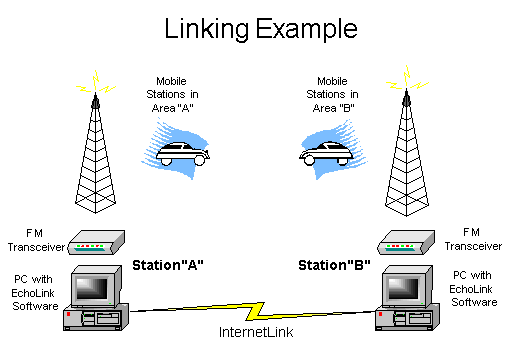
echolink-şema

The program greatly enhances the communication capabilities of Amateur Radio by allowing worldwide connections between operators or from computer to relay. Echolink has over 350,000 users worldwide and operates in 159 of 193 countries.
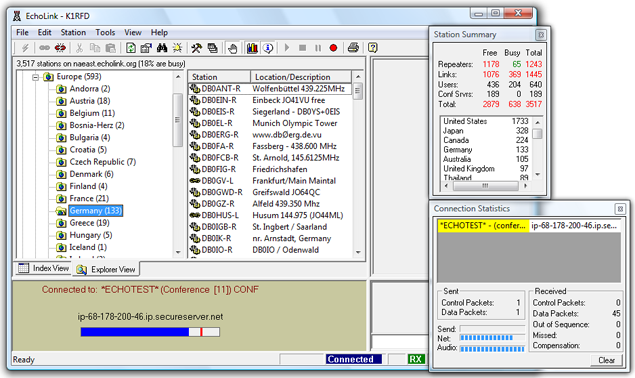
echolink-arayuz

1 Installing Echolink Software

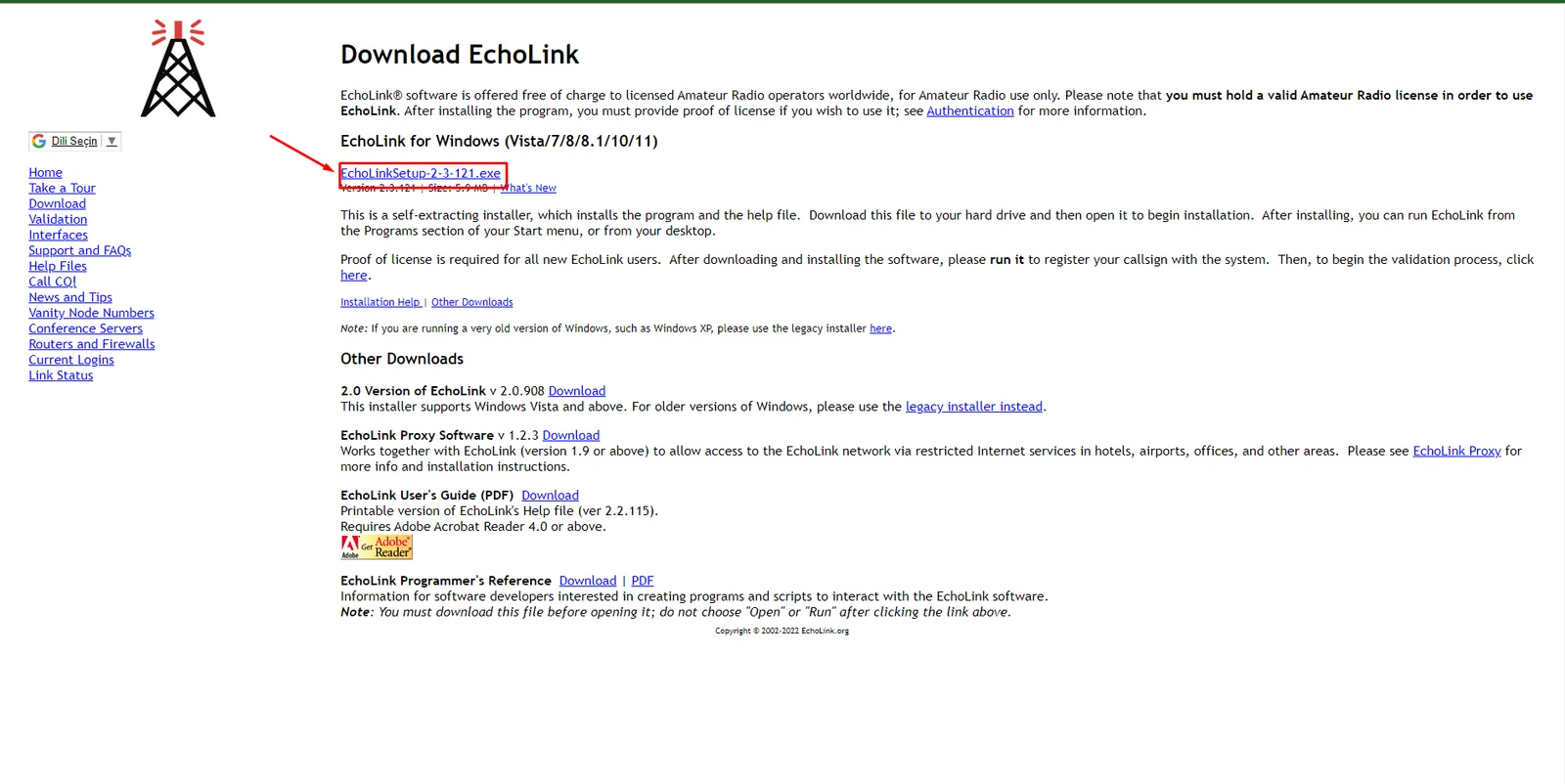
First, we begin by downloading the Echolink software to our computer or mobile device. Click on the logos below to download the version suitable for your device.

PC                          


2 Installing and Configuring Echolink

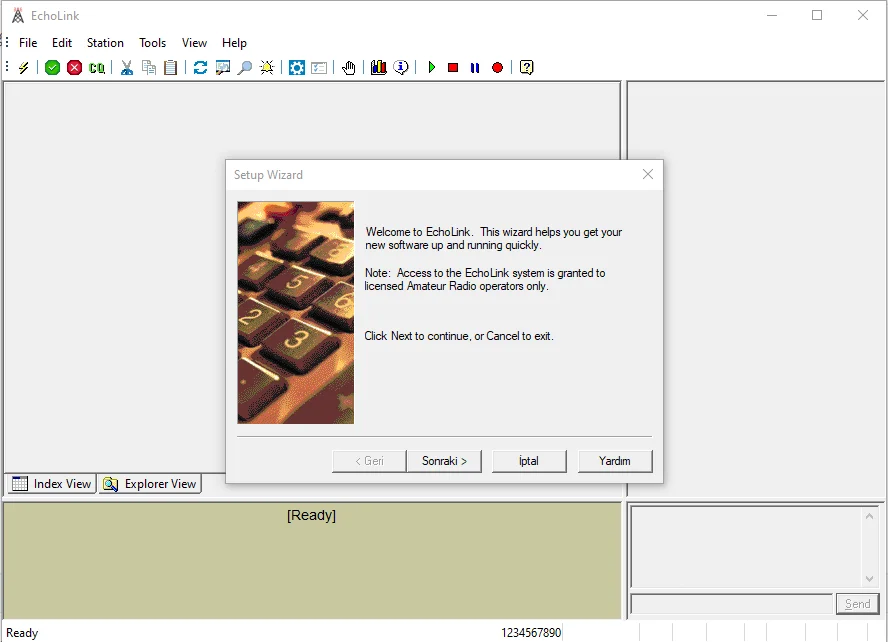
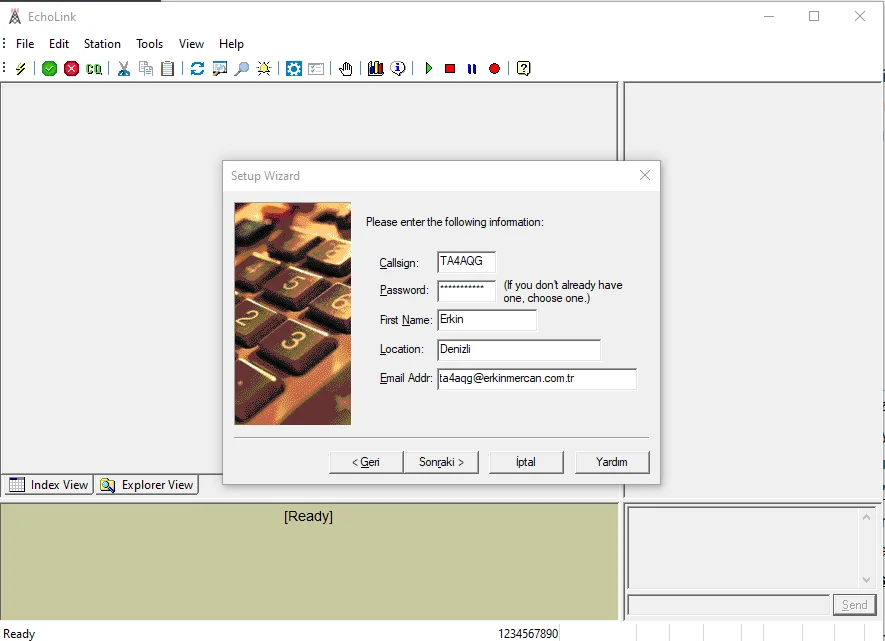
After downloading the Echolink installation file to your computer, double-click it to open it. When the program opens, you will be greeted with a screen similar to the one shown. In the window that appears, click the "Next" button. In the second window, select the "Computer User" option and click "Next." A form will appear asking for your information, as shown in the image. From top to bottom, enter your "Call Sign" > "Password" > "Name" > "Location" > "Email Address."

In the third window, select "Asia" from the region selection screen and click "Next." Click "Next" and "Finish" in the fourth and fifth windows to complete the installation.

No additional installation is required for mobile platforms.


3 Call Sign Verification

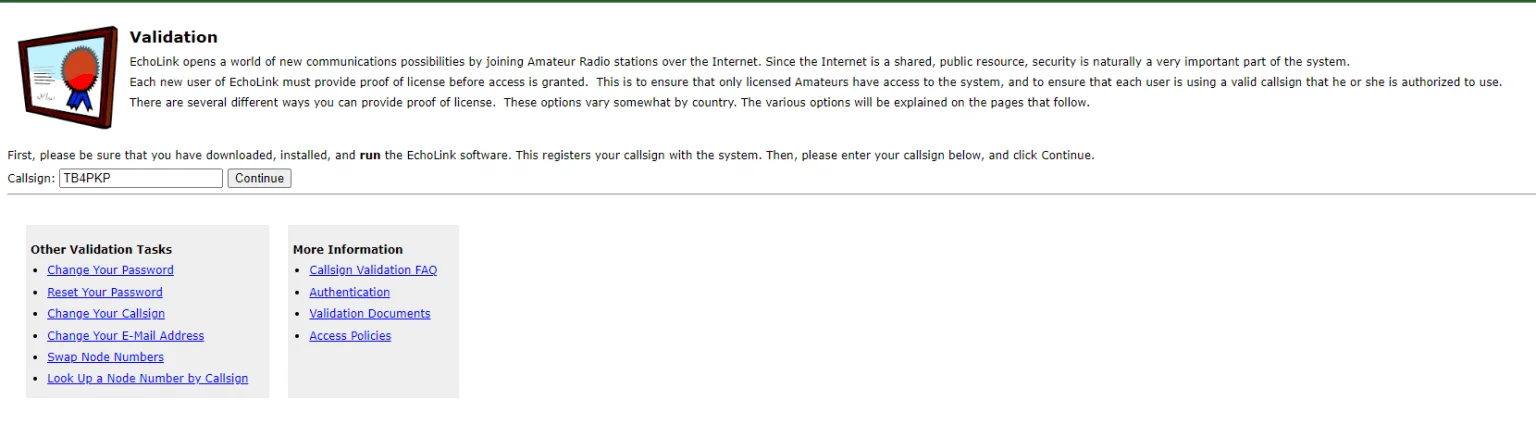
After completing the steps above, we need to verify our call sign. To do this, click on the following link: https://www.echolink.org/validation/

Once on the verification page, enter your call sign in the "Callsign" box and click the "Continue" button. On the next page, click the "Scan and Upload" option.

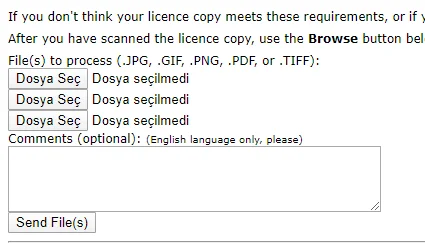
On the page that opens, click the "Select File" button below and choose your license in .PDF format that you obtained from the General Directorate of Coastal Safety E-Services page. Wait for it to upload, then click the "Send File(s)" button to start the verification process. (Unless there are any problems, your account will be verified within 24-48 hours.)


4 Configuring Proxy Settings

Most internet users in Turkey are assigned CGN IP addresses, which prevents software that uses older internet protocols and requires port forwarding (see Echolink).

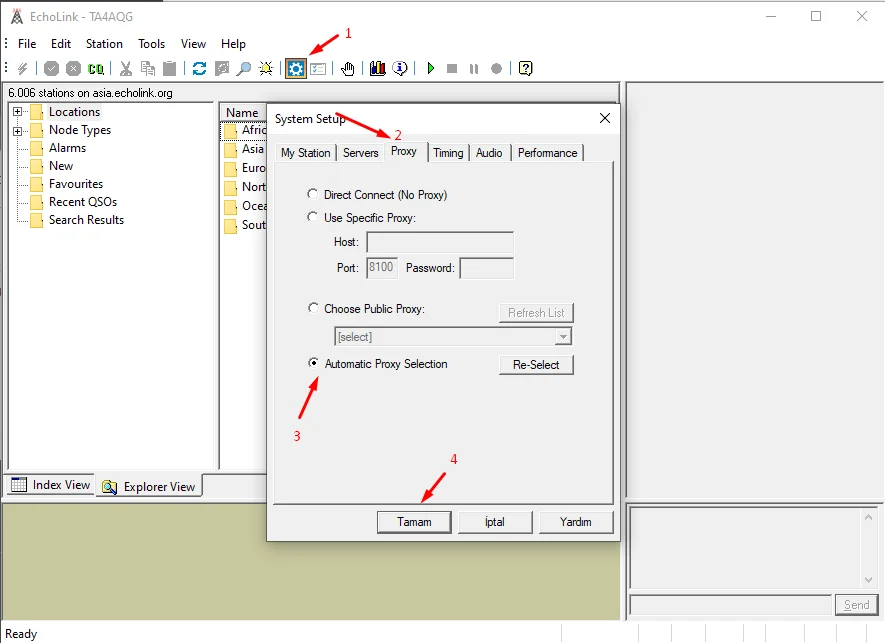
You can log in to the Echolink application but cannot establish a connection without resolving this issue. To fix this, open the Echolink software, then go to “Setup” > “Proxy” > “Automatic Proxy Selection” and click “OK”. (An example is shown in the image on the left.)

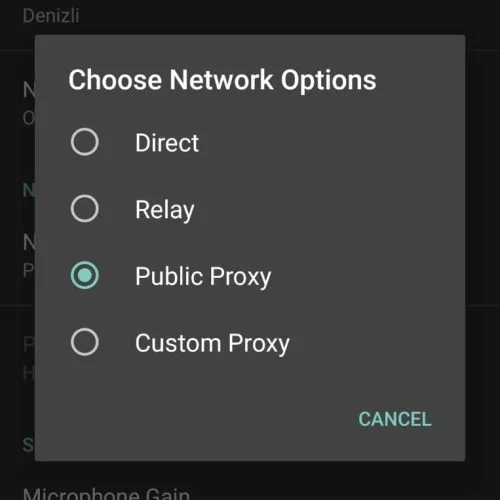
For users of the mobile application, simply go to the three dots in the upper left corner > “Settings” > “Network Connection” > “Public Proxy”.

Erkin Mercan
TA4RX
Comments 0
To comment, please Login.
Back to Blog
All Posts